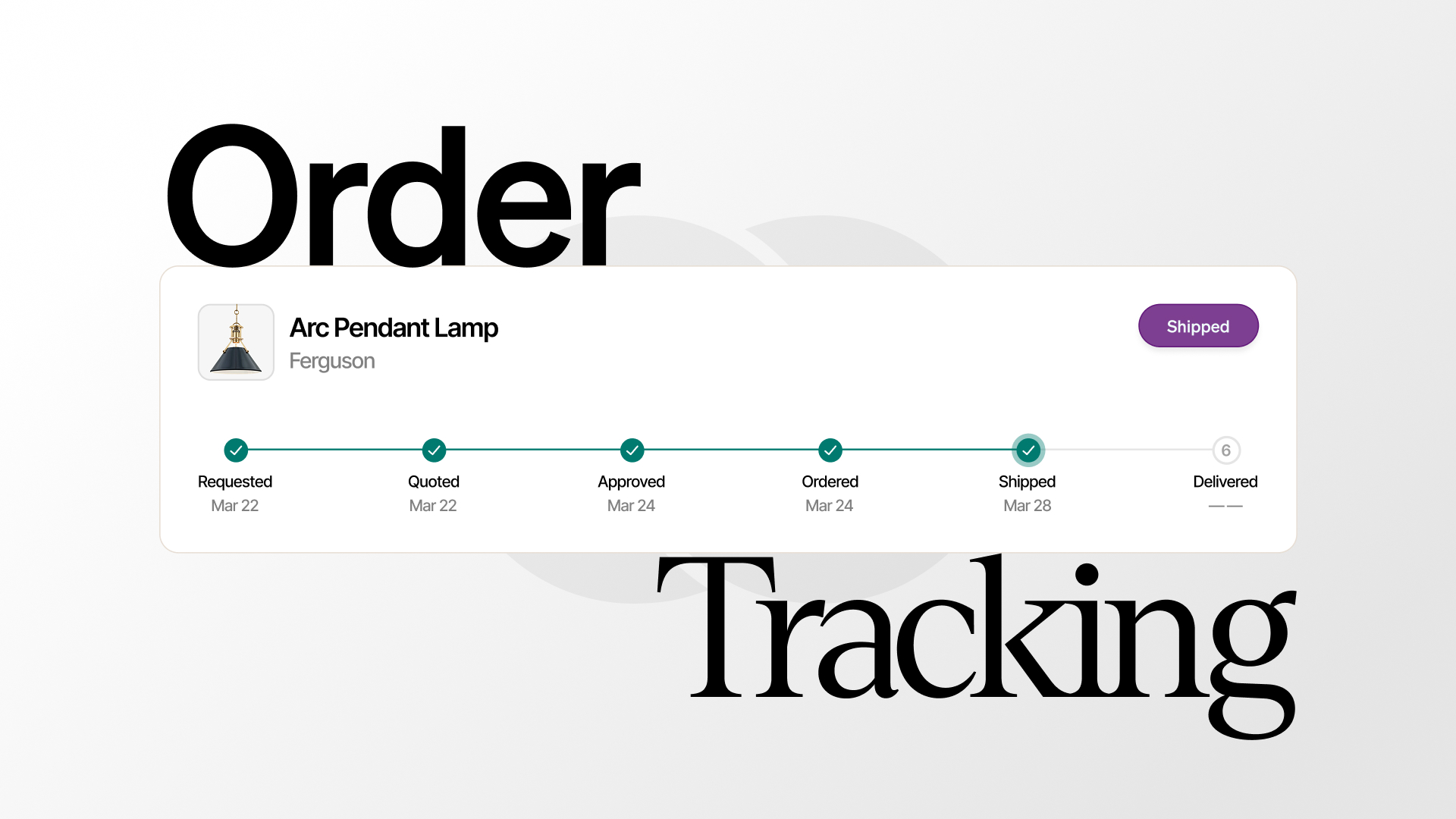
Order Tracking in Schedule
Follow purchase orders from quote to delivery inside the schedule—status, ETAs, and inbox sync on every line item.
By Object & Order Team
Keeping tabs on what you’ve bought usually means digging through emails and cross-referencing spreadsheets. We’ve fixed that by bringing order tracking directly into the schedule. Now you can see exactly what’s arriving and when, right alongside the rest of your project.
How does order tracking work inside the schedule?
Order tracking in Object & Order lives on the same schedule where you specify products, set markup, and build client pricing. Each schedule item that becomes a purchase order carries its status forward—from quote requested through ordered, shipped, and delivered—so your team never has to hunt for updates in a separate tool or spreadsheet tab.
The schedule is the project document your firm works from every day. When a schedule item moves into purchasing, the purchase order inherits that context: vendor, room, client price, firm cost, and sourcing type. Whether the item is O&O-sourced or self-sourced, the status column updates in place. Designers, project managers, and procurement staff all read the same view.
That single-source structure matters on active residential projects where dozens of vendors send confirmations on different timelines. Instead of asking “where did we put the tracking number for the pendant?”, the answer is on the row—next to the product, the vendor, and the delivery window.
What purchase order statuses can you see?
Object & Order surfaces the full purchase order lifecycle with designer-facing labels your team already understands. A quote requested status means the vendor is still pricing the item. Quoted means a vendor quote has arrived and is waiting for firm review. Approved means the firm accepted the quote and the order is ready to place—O&O-sourced purchase orders wait until the required deposit is met before ordering; self-sourced purchase orders are never payment-gated.
Once an order is placed, status moves to ordered. When a carrier scan or vendor notice arrives, the row advances to shipped with tracking attached. Delivered and cancelled are terminal states. Every transition is visible on the schedule item, so “where is this sofa?” has one answer, not five email threads.
This status model works for both sourcing paths. O&O-sourced items flow through Object & Order’s procurement layer: quotes, deposits, and platform fee on item cost are handled in the same workflow. Self-sourced items—where your firm orders directly from the vendor and the app tracks fulfillment—follow the same status labels with sourcing-appropriate gates.
How do email updates get matched to purchase orders?
When shipping confirmations and vendor updates hit your inbox, Object & Order reads them and links tracking numbers, delivery dates, and order references to the correct purchase order. Connect Gmail or Outlook once; the system monitors for order confirmations, shipment notices, and carrier updates without manual copy-paste.
AI matching handles the messy reality of vendor email formats. One vendor sends a PDF confirmation; another embeds tracking in the body; a third uses a portal link. The system extracts what it can and maps it to schedule items. When a message does not match automatically, you can assign it yourself in a few clicks—keeping the project on track without rebuilding a spreadsheet from scratch.
This is the difference between “we have order tracking” as a checkbox and order tracking that actually runs in the background. Your inbox already contains the information; Object & Order puts it on the row where your team makes decisions about install dates, client updates, and follow-ups.
How do live ETAs help your team plan installs?
Delivery windows update in real time as carriers publish new estimated arrival dates. Your schedule reflects the latest ETA without anyone refreshing a carrier site or forwarding a shipping email to the project channel.
Live ETAs matter when install week approaches and one delayed chandelier can block an entire room. Project managers see slippage early. Designers can adjust client conversations before the client asks. Procurement staff spot vendors that consistently miss quoted lead times—data that feeds better vendor selection on the next job.
Proactive alerts complement the schedule view. Receive notifications when shipments are delayed or when an order status changes—before you have to ask. Combined with tasks you can create directly from vendor emails, the workflow turns inbox noise into actionable project intelligence.
Can clients see order status through the client dashboard?
Yes—with control. The client dashboard gives clients a branded, live view of shared project documents. You decide what crosses over: proposals, invoices, and schedules stay internal until you publish. When you share schedule visibility, clients see progress without your internal firm cost, markup, or procurement details.
That client-safe sharing reduces “any update on my dining table?” emails while protecting the financial layer your firm needs private. Everyone looks at the same delivery picture; only your team sees firm cost and margin.
Why put tracking in the schedule instead of a separate tool?
Spreadsheets and standalone tracking apps fail because they duplicate data the schedule already holds. Every manual export introduces lag: the spreadsheet says “shipped” while the schedule still says “ordered,” and someone spends Friday afternoon reconciling the two.
Object & Order keeps specification, pricing, purchasing, and fulfillment on one timeline. Multi-vendor projects—two vendors or twenty—consolidate into a single scannable view. Historical tracking for past orders stays attached to the project record, which helps when a client reorders or when you need to reference lead times from a prior installation.
If your studio is tired of inbox archaeology and spreadsheet drift, order tracking inside the schedule is the operational layer that keeps procurement quiet in the background while your team stays focused on design.